
zr - The Zen Reporter CLI
The Zen Reporter Command-Line Interface (zr / zen-reporter) provides a powerful suite of terminal utilities for managing, viewing, summarizing, and querying test run history in Zen Reporter. Powered by an embedded DuckDB analytics engine, zr allows developers and CI/CD pipelines to inspect test run results directly from the terminal, generate markdown summaries for Pull Requests, and run arbitrary SQL queries on historic JSONL run files.
🏗️ Overview & Binary Setup
Section titled “🏗️ Overview & Binary Setup”When zen-reporter is installed as a package dependency, npm/yarn/pnpm exposes two binary aliases:
zr: Short-form convenient alias.zen-reporter: Full-name binary target.
# Executing via npx / package runnernpx zr <command> [options]
# Directly via npm scripts in package.jsonnpm run show
Automatic Package Manager Detection
Section titled “Automatic Package Manager Detection”zr intelligently auto-detects the host environment’s package manager (pnpm, yarn, bun, or npm) by inspecting lockfiles (pnpm-lock.yaml, yarn.lock, bun.lock, package-lock.json, .npmrc) and package.json to execute Playwright CLI commands seamlessly.
🔍 Commands Reference
Section titled “🔍 Commands Reference”1. zr show
Section titled “1. zr show”Starts a local static HTTP server to serve the generated Zen Reporter HTML report and automatically launches it in your system’s default browser.
If no subcommand is passed to npx zr (e.g. running just npx zr), show is executed by default.
npx zr showOutput
Section titled “Output”Serving HTML report at http://127.0.0.1:9323Press Ctrl+C to quit.Viewing a report in a custom output directory
Section titled “Viewing a report in a custom output directory”PW_REPORTER_OUTPUT=playwright-report npx zr showSpecifying a preferred server port
Section titled “Specifying a preferred server port”PORT=8080 npx zr showBehavior & Features
Section titled “Behavior & Features”- Default Root Directory: Looks for index.html inside the directory specified by
PW_REPORTER_OUTPUT(defaults to zen-report/ relative to your working directory). - Local Server: Binds locally to 127.0.0.1.
- Automatic Port Fallback: Starts listening on port 9323 (or the port defined by PORT). If the chosen port is already in use, it automatically increments and attempts the next available port (e.g., 9324, 9325, etc.).
- Auto-open Browser: Automatically detects the host OS and opens the report URL:
- SPA Fallback: If requested subpaths or static assets are not found, requests fallback to index.html.
- Directory Traversal Protection: Sanitizes incoming paths to prevent access outside the configured report directory (returns 403 Forbidden).
2. zr summary
Section titled “2. zr summary”Parses zen-report/report.json and prints a structured, GitHub-flavored Markdown summary snippet to stdout. Perfect for pasting into GitHub Actions PR comments or Slack build notifications.
npx zr summarySample Output
Section titled “Sample Output”### 📊 Test Run Summary: Test Automation Project — Test Run
**Status:** ❌ FAILED**Duration:** 1m 14s**Pass Rate:** 85.7%
| Total | Passed | Failed | Timed Out | Skipped || :---: | :----: | :----: | :-------: | :-----: || 21 | 18 | 2 | 1 | 0 |
#### ❌ Failed Tests (3)
- **[chromium]** `tests/auth.spec.ts` › User login with invalid credentials- **[firefox]** `tests/checkout.spec.ts` › Complete purchase flow- **[webkit]** `tests/api.spec.ts` › Fetch user profile timeoutCI/CD Integration Example (GitHub Actions)
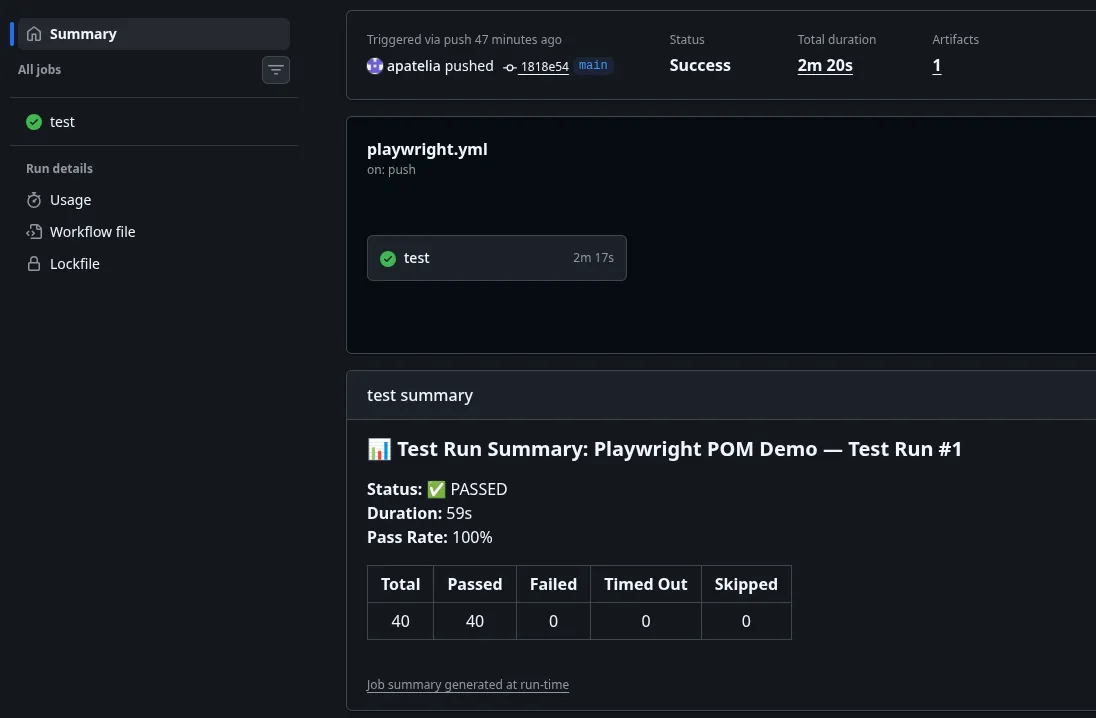
Section titled “CI/CD Integration Example (GitHub Actions)”Integrate zr summary into your CI/CD pipeline to automatically publish test run results directly to your workflow summary page. In GitHub Actions, pipe the output to the $GITHUB_STEP_SUMMARY environment file:
- name: Generate Markdown Summary if: always() run: npx zr summary >> $GITHUB_STEP_SUMMARYOnce configured, your GitHub Actions run will render an executive summary of the test results:
3. zr history (DuckDB Analytics Engine)
Section titled “3. zr history (DuckDB Analytics Engine)”zr history subcommands execute high-performance analytical queries across historic newline-delimited JSON (runs/*.jsonl) files stored in the output directory (zen-report/runs).
Subcommands
Section titled “Subcommands”| Command | Description |
|---|---|
npx zr history |
List all historical test runs with start time, duration, and pass/fail/skip counts. |
npx zr history runs |
Same as above. List all historical test runs with start time, duration, and pass/fail/skip counts. |
npx zr history files |
Summarize historical test execution metrics grouped by spec file. |
npx zr history tests |
Summarize granular historical execution metrics and average durations per test case. |
npx zr history flaky |
Identify flaky tests that passed in some runs and failed in others. |
npx zr history regressions |
List tests that passed in a previous run but failed in the latest run. |
npx zr history slow [--limit N] |
Rank the top N slowest tests by average execution duration across runs (default: 10). |
npx zr history trend |
Display historical pass rate percentages per run over time. |
npx zr history report |
Build history.json and inject it into index.html to populate the History & Trends tabs. |
npx zr history query "<SQL>" |
Run arbitrary DuckDB SQL queries over recorded test runs. |
4. zr env
Section titled “4. zr env”Prints environment diagnostic information to stdout, useful for verifying package versions and debugging environment setup in CI/CD pipelines or local development. If you ever need to report a bug against Zen Reporter, then this command can come handy.
npx zr envReported Details
Section titled “Reported Details”zen-reporterversion: Installed version of Zen Reporter.@playwright/testversion: Installed Playwright framework version.- Node.js version: Active Node.js runtime version.
- OS: Host operating system name (and version only for macOS).
Example Output
Section titled “Example Output”zen-reporter version: 0.19.0@playwright/test version: 1.64.1Node.js version: v26.3.1OS: Windows 11 Pro💻 Terminal Table Formatting Engine
Section titled “💻 Terminal Table Formatting Engine”zr history features a built-in terminal table renderer designed for CLI legibility:
- Auto-wrapping & Column Flexing: Responsive column width calculation prevents line-wrapping on narrow screens.
- Proper Header Casing: Converts database column names into clean display headers, i.e.
Avg Duration. - Smart Formatting:
- Millisecond durations are formatted as human-readable durations (
1m 24sor45s). - Timestamps are formatted into ISO local dates (
YYYY-MM-DD HH:MM:SS). - Numbers and percentages are right-aligned while text fields remain left-aligned.
- Millisecond durations are formatted as human-readable durations (

⚡ Custom SQL Querying with zr history query
Section titled “⚡ Custom SQL Querying with zr history query”The query subcommand grants full access to DuckDB’s SQL syntax. The table/view runs is automatically bound to read_json('zen-report/runs/*.jsonl', format='newline_delimited').
# Query failed tests in WebKit project with duration > 5000msnpx zr history query "SELECT file, title, duration_ms FROM runs WHERE project = 'webkit' AND status = 'failed' AND duration_ms > 5000 ORDER BY duration_ms DESC"Tip: Use JSONL schema to construct your queries.